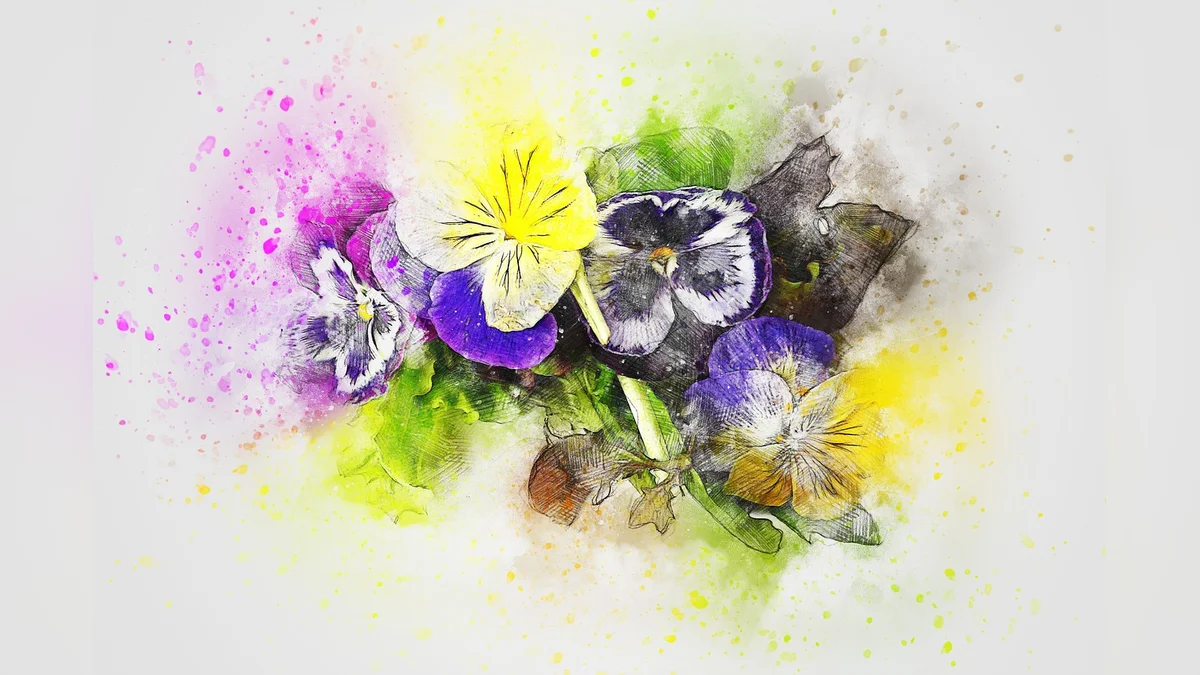
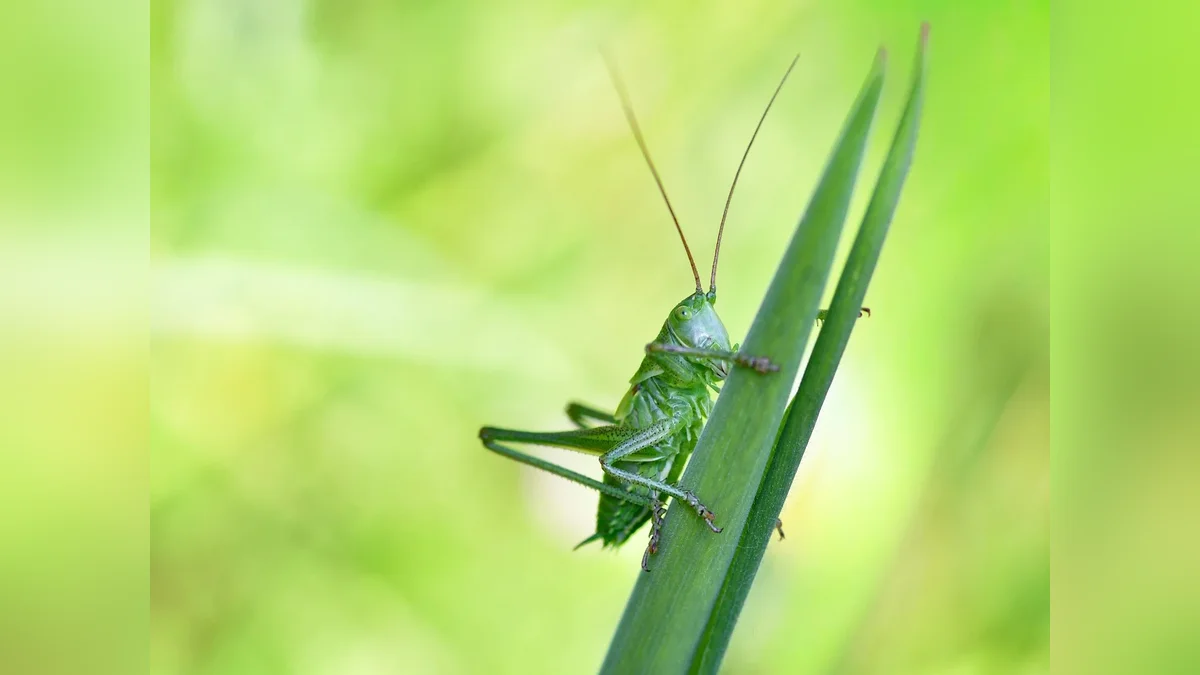
Removing the background from an image allows you to isolate a primary subject, place it on a transparent canvas, or insert a completely new backdrop with ease. Modern digital editing tools automate this process using intelligent edge detection, turning what once required hours of manual tracing into a simple one-click task for everyday users and creators alike.
Understanding How Automated Cutouts Work
Artificial Intelligence and Edge Detection
Automated background removal relies on advanced software algorithms trained to recognize human figures, animals, products, and distinct objects within a picture. These systems analyze color contrast, lighting variations, and depth cues to separate the foreground subject from surrounding pixels. By examining millions of reference points instantaneously, the software draws a precise boundary around your focal point. This eliminates the need for manual clicking or tedious tracing, making digital photography adjustments accessible to individuals who have never touched complex graphic design software before.
File Formats and Transparency Standards
Once a background is successfully eliminated, saving the file in the proper format is essential to preserve your transparent area. The Portable Network Graphics standard, commonly known as PNG, supports alpha channel transparency so your isolated subject floats cleanly over any new color or design. In contrast, traditional Joint Photographic Experts Group files automatically fill empty space with a solid white or black backdrop. Selecting the correct download setting ensures you can layer your cutout onto greeting cards, family photo collages, or presentation slides without awkward boxes surrounding your picture.

Refining Fine Details and Edges
Even the smartest automated tools occasionally struggle with intricate details such as wispy hair, sheer fabric, or reflective glass surfaces. Most web-based editors include manual brush tools that let you zoom in to restore accidentally erased sections or clean up stubborn leftover pixels. Taking a moment to inspect the perimeter around your subject guarantees a professional finish. These touch-up brushes give users complete creative control, bridging the gap between automated speed and manual precision when complex visual textures are involved in the snapshot.
Practical Applications for Daily Projects
Isolating subjects opens up creative possibilities for scrapbooking, customizing digital invitations, or organizing personal photo archives. You can lift a portrait of a grandchild from a cluttered living room and place it onto a clean holiday card or a cheerful watercolor background. Small business owners and craft hobbyists also use these cutouts to showcase handmade items cleanly on retail listings or community bulletin boards. Removing distracting elements directs the viewer's eye straight to what matters most inside your frame.
Choosing the Right Tool for Your Task
Selecting an appropriate editing platform depends on whether you prefer a quick browser utility or a comprehensive desktop application with deeper adjustment layers. Many web services let you upload a picture, process the transparency, and download the finished result within seconds.
| Editing Platform | Primary Strength | Best Suited For |
|---|---|---|
| Browser Utility | Instant one-click speed | Quick family photos and cards |
| Design Suite | Detailed edge touch-ups | Complex hair and fine textures |
| Mobile App | Direct smartphone access | On-the-go picture sharing |
| Desktop Software | Advanced layering control | Professional graphic projects |
Steps to Verify Your Cutout Quality
- Inspect the outer edges of your subject against a dark grid background.
- Check for stray color halos or fuzzy fragments remaining from the original scene.
- Use a soft eraser brush to clean up tiny unwanted background specks.
- Save your finished image as a transparent PNG file before closing.
Frequently Asked Questions
Can I remove a background without buying expensive software?
Yes, numerous free web-based utilities allow you to upload a picture and download a clean transparent cutout at no cost. These browser tools handle the technical detection work automatically without requiring a paid subscription.
What happens to the original photo after processing?
Your original source image remains completely unchanged on your computer or device storage. The background removal tool creates a separate new file version, leaving your starting photograph safe and ready for future edits.

Why do some complex edges look slightly blurry?
Semi-transparent elements like fine hair or glass can confuse automated scanners. Using manual restoration and erase brushes inside the editor helps you sharpen those tricky borders for a clean look.
Conclusion
Removing an image background transforms ordinary snapshots into versatile visual assets for personal projects and creative sharing. Open your preferred web browser, upload a favorite picture today, and experiment with placing your main subject onto a fresh new background canvas.