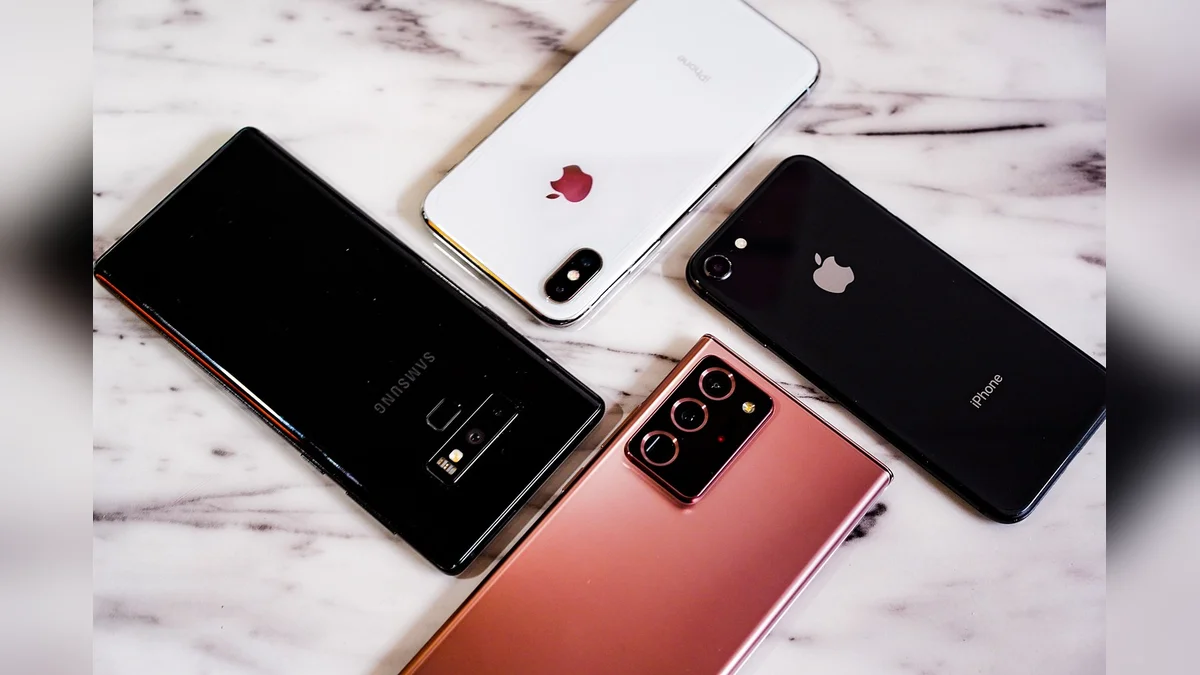
Choosing the right hardware for video calls comes down to matching screen visibility, physical reach, and software simplicity with daily habits. Apple devices like the iPad offer a balanced combination of spacious displays, clear audio, and streamlined settings that reduce frustration during face-to-face family conversations. Matching these tools to individual comfort levels ensures smooth communication without unnecessary technical complications.
Key Considerations for Video Communication Hardware
Screen Size and Visual Clarity
Larger displays make a substantial difference for users who prefer not to squint or strain while looking at family members on a call. An iPad provides a generous surface area compared to pocket-sized smartphones, allowing facial expressions and gestures to appear lifelike and distinct. High-resolution panels maintain sharp text and vibrant color contrast, which helps people with mild vision changes recognize who is on the line immediately. Positioning the tablet on a stable stand further eliminates shaky camera movements and keeps hands free during long chats.
Touch Sensitivity and Physical Design
Navigating digital interfaces requires hardware that responds predictably to gentle touches without demanding pinpoint precision. Lightweight tablets feature responsive touchscreens that register taps easily, minimizing the physical effort needed to answer or decline incoming calls. Rounded edges and balanced weights make the device comfortable to hold on a lap or rest on a kitchen table. Furthermore, durable cases with built-in grips prevent accidental slips and protect the equipment against everyday bumps around the house.

Simplified Interface Modes
Modern operating systems include specialized layout options that strip away confusing icons and limit options to essential daily tasks. Activating streamlined configuration profiles allows caregivers to display large, high-contrast contact buttons directly on the primary home screen. This setup prevents accidental navigation into system menus or settings panels that might disrupt ongoing communication. Familiarizing yourself with these custom configurations is outlined further in resources like Apple Support Assistive Access Guide. Trusted contacts appear right where expected every single time the device wakes up.
Audio Quality and Speaker Volume
Clear sound reproduction ensures that soft voices or distant background notes never interfere with understanding spoken conversation. Built-in multi-speaker arrays deliver rich, balanced audio that fills a quiet room without requiring external headphones or auxiliary amplifiers. Microphones with background noise reduction isolate speech naturally, even if a television or kitchen appliance is running nearby. Adjusting volume thresholds through dedicated physical buttons gives users immediate control over how loud incoming greetings or stories sound.

Evaluating Hardware Choices and Daily Usability
Selecting the optimal gadget depends heavily on where and how frequently calls take place around the home. Evaluating screen real estate alongside battery life helps prevent unexpected power dropouts right in the middle of a catch-up session. Reviewing practical differences ensures a confident choice for every household.
| Device Type | Primary Strength | Best Practical Use |
|---|---|---|
| Standard iPad | Large display and reliable battery life | Kitchen counter or living room table calls |
| iPad Mini | Compact size with light one-handed grip | Moving easily from room to room |
| iPhone Device | Always-ready pocket cellular connectivity | Quick check-ins away from home base |
| Mac Computer | Wide stationary monitor with keyboard | Extended family gatherings at a desk |
Practical Steps Before Setting Up a Device
- Verify that a steady high-speed Wi-Fi network reaches the preferred seating area in your home.
- Clean the front camera lens gently with a soft cloth to maintain a crisp video image.
- Test the speaker volume using a short practice call with a trusted family member beforehand.
- Keep a charging cable plugged into a nearby outlet so the battery never dies unexpectedly.
Frequently Asked Questions
Why is a tablet often preferred over a smartphone for video calls?
Tablets offer a much larger display area that reduces eye strain and makes facial details far easier to see. The larger frame also accommodates bigger touch targets, which helps prevent accidental wrong taps during daily use.
Do callers need to use the exact same brand of hardware?
Communication through this specific service requires participating individuals to use compatible ecosystem hardware such as tablets, phones, or computers. Planning ahead with family members ensures everyone can connect smoothly without compatibility roadblocks.

How can family members help manage device settings remotely?
Caregivers can configure accessibility layouts, adjust text scaling, and organize favorite contacts ahead of time. This preparation lets the primary user focus entirely on enjoying the conversation rather than troubleshooting tech menus.
Conclusion
Finding a comfortable video communication setup brings loved ones closer together regardless of physical distance or daily routine. Taking time to evaluate screen size, audio clarity, and interface simplicity ensures a stress-free experience from day one. Try setting up a brief test call today to build familiarity and confidence.